You’re at a coffee shop, ready to pay with Cash App. You open the app, and suddenly you see something about an “NFC tag” or a prompt to “tap to pay.” You pause. Is this safe? What exactly am I tapping? And why didn’t anyone explain this before?
You’re not alone. Thousands of Cash App users encounter NFC functionality without understanding what’s happening behind the scenes—or whether they should trust it.
Let’s clear this up. The “NFC tag” reference in Cash App isn’t something mysterious or risky. It’s actually a convenient payment technology that’s been around for years. But knowing how it works and when to use it can save you from confusion, failed transactions, and potential security concerns.
What “NFC Tag” Actually Means in Cash App
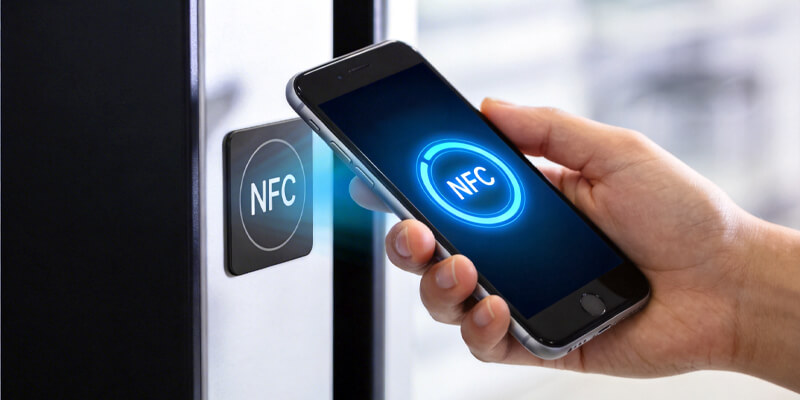
NFC stands for Near Field Communication—a wireless technology that allows two devices to exchange data when they’re extremely close together, typically within 2 inches (about 5 centimeters).
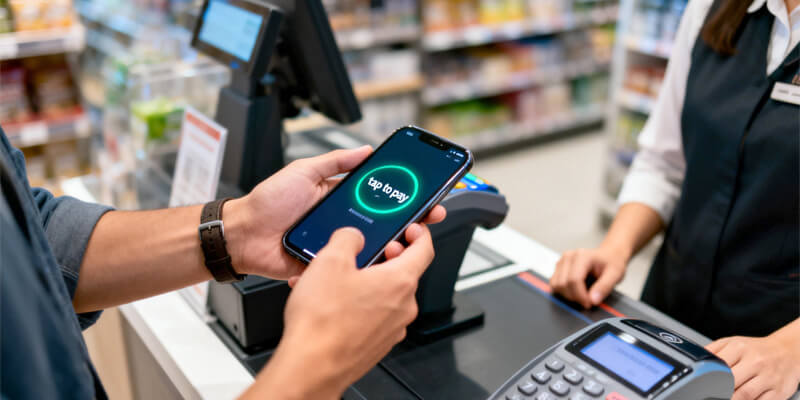
When Cash App mentions “NFC tag” or prompts you to use NFC, it’s referring to the app’s ability to communicate with contactless payment terminals at stores, restaurants, and other merchants.
Here’s the simple version: Your phone becomes a digital wallet that can “tap to pay” just like a contactless credit card.
The “tag” part refers to the NFC chip inside the payment terminal. When you hold your phone near the terminal, your Cash App communicates with that chip to process the payment—no physical card required, no swiping, no inserting.
How Cash App Uses NFC for Payments
Cash App has integrated NFC functionality to compete with other mobile payment platforms like Apple Pay, Google Pay, and Samsung Pay.
Here’s how it works:
- You add money to your Cash App balance or link a debit card
- At checkout, you select Cash App as your payment method
- You hold your phone near the contactless payment terminal
- The NFC chips in your phone and the terminal communicate
- The payment processes in seconds
The technology operates at 13.56 MHz frequency and follows international standards (ISO 18092), making it compatible with most modern payment terminals worldwide.
Important distinction: Cash App’s NFC feature is different from the “NFC Tag Detected” notification you might see on your phone’s home screen. That general notification appears when your phone detects any NFC chip nearby—like a credit card in your wallet, a transit pass, or a marketing tag. Cash App’s NFC function is specifically designed for payment processing.
Why Cash App Added NFC Functionality
The answer is simple: convenience and competition.
Traditional Cash App payments required you to either:
- Generate a QR code for the merchant to scan
- Request money from another Cash App user
- Use your physical Cash Card (Cash App’s debit card)
NFC payments eliminate these steps. You can now pay at any store that accepts contactless payments—which, as of 2025, includes most major retailers, restaurants, and service providers.
The business case: By adding NFC, Cash App positions itself as a complete payment solution. You don’t need to carry your Cash Card. You don’t need the merchant to have Cash App. You just tap and go.
Is Cash App’s NFC Feature Safe?
This is the question most users really want answered.
Short answer: Yes, when used correctly.
NFC payments through Cash App include several security layers:
Tokenization
When you tap to pay, Cash App doesn’t transmit your actual account number or card details. Instead, it generates a one-time-use “token”—a temporary code that represents your payment information.
Even if someone intercepted this token (which is extremely difficult given the 2-inch range requirement), they couldn’t use it for another transaction.
Device Authentication
Before processing an NFC payment, Cash App typically requires:
- Your phone’s biometric authentication (fingerprint or face recognition)
- Your Cash App PIN
- Your phone’s screen to be unlocked
This means someone can’t just steal your phone and start tapping it everywhere.
Limited Range
NFC only works within 2 inches. Unlike credit card skimming devices that can read cards from several feet away, NFC requires deliberate, close-proximity contact.
The real risks to watch for:
Fake payment terminals: In rare cases, scammers set up fake NFC terminals that look legitimate but are designed to steal payment information. This is why you should only use NFC at established, reputable businesses.
Accidental payments: If you have NFC enabled and accidentally tap your phone against a payment terminal, you might authorize a payment unintentionally. Always confirm the amount before tapping.
Compromised devices: If your phone is infected with malware, NFC payments could potentially be intercepted. Keep your phone’s operating system updated and avoid downloading apps from untrusted sources.
How to Enable (or Disable) NFC in Cash App
To use NFC payments in Cash App:
- Open the Cash App
- Tap your profile icon
- Select “Cash Card” or “Payment Methods”
- Look for “Contactless Payments” or “Tap to Pay” settings
- Follow the prompts to enable NFC
Note: Your phone must have NFC hardware. Most smartphones manufactured after 2018 include NFC, but some budget models don’t.
To check if your phone has NFC:
- iPhone: All models from iPhone 6 and newer have NFC
- Android: Go to Settings → Connected Devices → Connection Preferences → NFC
To disable NFC entirely on your phone:
- Android: Settings → Connected Devices → NFC (toggle off)
- iPhone: You cannot disable NFC completely, but you can remove payment cards from Apple Wallet to prevent accidental payments
Cash App NFC vs. Other Mobile Payment Methods
How does Cash App’s NFC feature compare to competitors?
| Feature | Cash App | Apple Pay | Google Pay | Samsung Pay |
|---|---|---|---|---|
| NFC payments | ✓ | ✓ | ✓ | ✓ |
| Peer-to-peer transfers | ✓ | ✓ (limited) | ✓ | ✗ |
| Works without internet | ✗ | ✓ | ✓ | ✓ |
| Requires specific phone | ✗ | iPhone only | Android only | Samsung only |
| Direct bank integration | ✓ | Via cards | Via cards | Via cards |
Cash App’s advantage: You can receive money from friends, pay bills, invest, and make NFC payments all in one app.
Cash App’s limitation: Unlike Apple Pay or Google Pay, Cash App typically requires an internet connection to process NFC payments because it needs to verify your balance in real-time.
Best Practices for Using Cash App NFC Safely
1. Enable Transaction Notifications
Set up instant notifications for every payment. This way, if an unauthorized NFC payment occurs, you’ll know immediately.
How to enable:
- Open Cash App → Profile → Notifications
- Turn on “Payment Notifications”
2. Use Biometric Authentication
Always require fingerprint or face recognition before payments process. This adds a critical security layer.
3. Monitor Your Transaction History
Check your Cash App activity regularly. Look for:
- Payments you don’t recognize
- Duplicate charges
- Incorrect amounts
4. Keep Your App Updated
Cash App regularly releases security updates. Enable automatic updates or manually check for new versions weekly.
5. Only Use NFC at Trusted Locations
Stick to established businesses with legitimate payment terminals. Avoid using NFC at:
- Pop-up shops with unfamiliar equipment
- Unmarked payment terminals
- Locations that seem suspicious
What to Do If Something Goes Wrong
If you notice a payment you didn’t authorize:
- Immediately open Cash App
- Tap the transaction in your activity feed
- Select “Report a Problem” or “Dispute This Transaction”
- Contact Cash App support (in-app support or 1-800-969-1940)
- Change your Cash App PIN
- Review your phone’s security settings
Cash App’s buyer protection policies may cover unauthorized transactions, but you need to report them quickly—ideally within 24-48 hours.
Failed Payment That Still Shows as Pending
Sometimes NFC payments fail at the terminal but show as “pending” in your Cash App:
- Wait 24-48 hours: Most pending charges automatically reverse
- Don’t pay again immediately: You might end up being charged twice
- Contact the merchant: Confirm whether they received payment
- Document everything: Take screenshots of the pending transaction
NFC Stopped Working Completely
If Cash App’s NFC feature suddenly stops functioning:
- Restart your phone
- Update Cash App to the latest version
- Check if NFC is enabled in your phone settings
- Remove and re-add your payment method in Cash App
- Contact Cash App support if the problem persists
The Future of Cash App NFC
As of 2025, Cash App continues expanding its NFC capabilities. Recent developments include:
Wider merchant acceptance: More small businesses now accept Cash App NFC payments directly, without needing traditional card processing equipment.
Transit integration: Some cities are testing Cash App NFC for public transportation payments, similar to Apple Pay and Google Pay.
Enhanced security features: Newer versions include dynamic CVV codes and advanced fraud detection specifically for NFC transactions.
Offline payment capability: Cash App is reportedly testing limited offline NFC payments for small amounts, though this feature isn’t widely available yet.
When Cash App mentions “NFC tag,” it’s simply referring to the contactless payment technology that lets you tap your phone to pay at stores.
It’s safe when you:
- Use it at legitimate businesses
- Keep your app updated
- Enable authentication requirements
- Monitor your transactions
It’s convenient because:
- No physical card needed
- Faster than chip or swipe
- Works at millions of locations
- Integrated with your Cash App balance
The technology itself isn’t mysterious or dangerous—it’s the same contactless payment system used by major banks and payment platforms worldwide. Understanding how it works just helps you use it more confidently.